How to Import an Anki Deck (.apkg) Into Nibomo: A Tested Walkthrough
A small Spanish deck from Anki went into Nibomo's AI chat as one .apkg file: 13 cards, a subdeck, two cloze notes and three pictures. The AI worked for 1 minute 15 seconds. After that the workspace had 13 new cards, two decks named after the Anki ones, every picture on the right card, and fill-in-the-blank cards with the same [...] gap Anki shows. The review history stayed behind.
That's how you import an Anki deck into Nibomo today. Export the deck as an .apkg, attach it in AI chat, and ask for cards. There's no one-click importer and no preview screen. The AI reads the package and saves the cards straight into your workspace, so you check the result afterward, not before.
Disclosure: I am Kirill Markin, and I build Nibomo. I didn't run the test in this article myself. An AI agent ran it on November 8, 2026, in the iOS Simulator (iPhone 17 Pro, iOS 27), using a development build of Nibomo 1.41.0 at app commit
fba02cd6c, as a fresh guest on the production backend. On November 9, 2026, after an app update, it repeated the test with the same file on app commitb7fee80baand got the same cards, decks and pictures; the Cards and Decks screenshots come from that repeat. The deck was made only for the test. The.apkgwas a real export in Anki's current package format, written by Anki's official Python library (anki26.09.4) rather than through desktop Anki's export dialog.
What came over from Anki, and what stayed behind
The sample deck was small on purpose but covered the awkward cases: plain notes, "Basic (and reversed card)" notes, cloze notes, a subdeck, tags, pictures, and a few cards with review history. Here's what each one turned into:
| In the Anki deck | What arrived in Nibomo |
|---|---|
| 3 Basic notes | 3 cards with the same front and back |
| 2 "Basic (and reversed card)" notes | 4 separate one-way cards, one for each direction |
| 2 Cloze notes with 3 deletions | 3 fill-in-the-blank cards, one per deletion |
| 3 Basic notes with a picture | 3 cards, each with its own picture |
| Tags (spanish, greetings, home, geography, food, image) | Kept as they were, plus a tag for the card's Anki deck |
Deck Spanish Basics and subdeck Spanish Basics::Home |
2 Nibomo decks with the same names |
| Review history on some cards | Not transferred; all 13 cards started as new |
Cloze notes stay cloze. A Nibomo card has a front and a back, so each deletion becomes its own card: the front hides the answer behind [...], and the back shows the whole sentence, the way Anki shows it after you flip. One note became "[...] is the capital of Peru." and "Lima is the capital of [...].", with "Lima is the capital of Peru." on the back.
Your Anki learning state stays in Anki: review history, intervals, due dates and FSRS state. The AI said so about the history itself, both in its plan and in its final reply. Anki's card machinery stays behind too: note types, card templates, CSS and JavaScript, and add-ons. The deck had no sound files, so this test says nothing about audio. Collection packages (.colpkg) aren't accepted at all.
Export the deck from Anki
Use desktop Anki and export one deck, not the whole collection. Nibomo's AI chat takes deck packages (.apkg), not collection packages (.colpkg). If you're unsure which file is which, the APKG vs COLPKG guide explains the difference.
- Open File > Export.
- Choose Anki Deck Package (.apkg) and pick the deck. According to Anki's export manual, a deck package includes the deck's child decks too.
- Leave Include media on if your cards have pictures.
- Turn Include scheduling information off.
- Save the file somewhere your phone or browser can reach.
You can leave Support older Anki versions off. The manual says that option writes a legacy file for old Anki clients; without it, Anki writes a newer format that's faster and compresses the media. The test file used that newer format, and all three pictures came through. Nibomo's backend reads the legacy format as well, so a file you exported earlier with the option on should work too, though this test didn't use one.
Scheduling information is worth turning off because none of it reaches Nibomo anyway. The manual also says that, without it, Anki strips the marked and leech tags for a clean copy. Leave it on and those tags stay on your notes, and since the AI keeps your tags as it finds them, they can turn up in Nibomo as ordinary tags.
While you're in the export dialog, make a full backup too. A collection package (.colpkg) with media is Anki's way to back up the whole collection, and it's your way back if you change your mind. Nibomo only reads the file you attach and never touches your Anki collection, but a backup costs nothing before you switch apps.
Attach the .apkg in Nibomo's AI chat
Open the AI tab, or start with the getting-started guide if you don't have Nibomo yet. A guest account is enough. The first time, the app asks you to allow AI data sharing, because the file goes to the AI. Skip Library's Import button for this. It only takes Nibomo's own .zip workspace package, not an Anki deck.
Tap the paperclip, then Choose File, find the .apkg in the Files picker (in the test it sat in On My iPhone) and tap Open. The file shows up as a chip above the message box. The request in the test was one plain sentence:
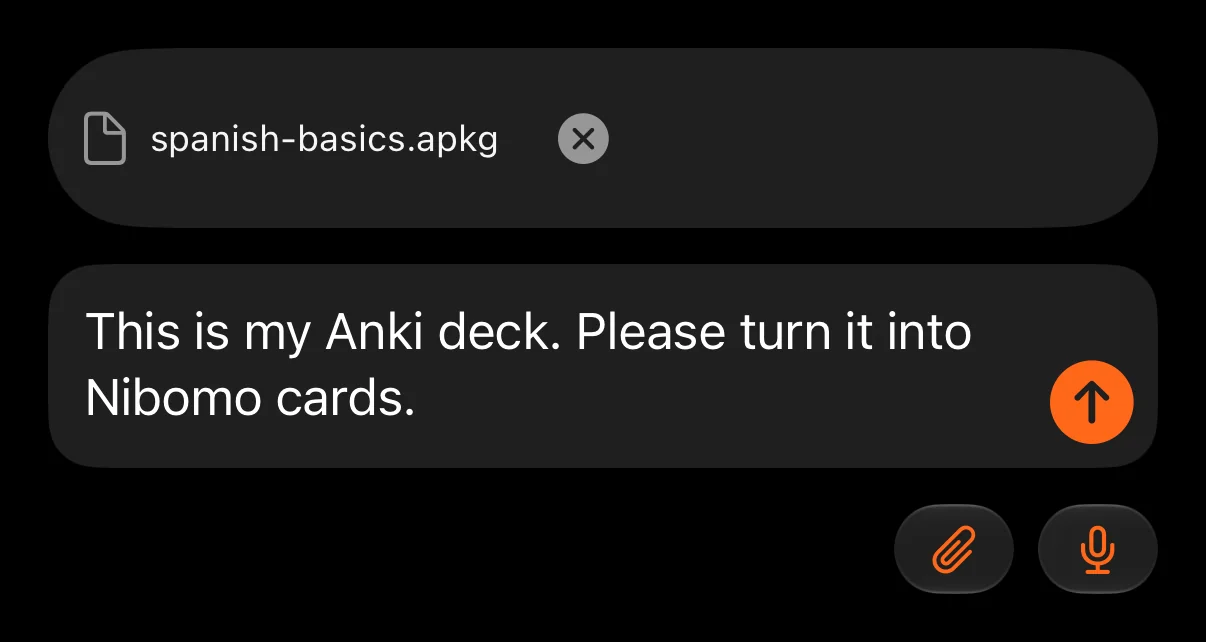
That was enough. If something matters to you, say it in the same message, for example a tag you want on every imported card.
Only the iPhone app was tested. According to Nibomo's source code, the Android app and the web app accept .apkg files in their AI chat file pickers too.
What the AI does with the package
While it worked, the chat showed a one-line plan: 13 cards saved in one batch, with tags, images, reversed cards, fill-in-the-blank prompts and the Home subdeck kept, and Anki review history not carried over.
Behind that line, the AI opened the Anki collection inside the package and read its decks, notes, cards, note types and templates. It uploaded the three pictures with their original bytes, so nothing was recompressed. Then it built each card from its note type's template, so the front and back follow the note's own layout, and saved the 2 decks and 13 cards in one batch. At the end it read the cards back and checked them against what it meant to save.
Two of its scripts failed along the way, and the AI recovered from both without help. The pictures had already uploaded before the first failure, and nothing was saved until the second was fixed, so no picture or card was duplicated. You can tap "Worked for" to see the steps.
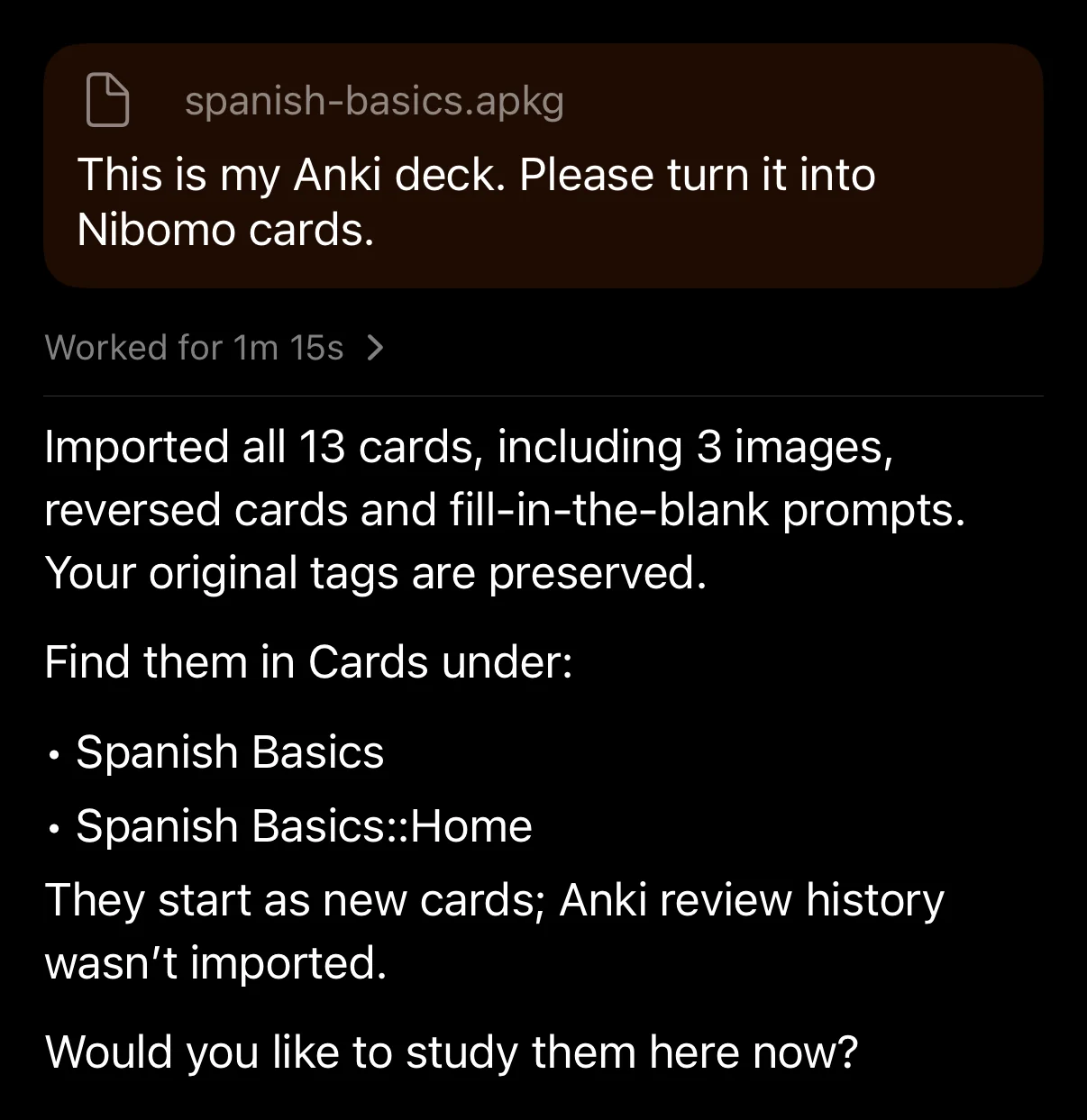
The whole import took one AI chat message. The reply names the decks it created, says the cards start as new, and offers to study them right away.
There was no confirmation step. Nibomo's AI acts on a clear request, so "turn it into cards" means the cards get saved. If you'd rather see a few cards before anything is written, ask for that in your first message. This test didn't try that.
Check the cards, decks and pictures
Open Library. In the test, Cards went from 1 to 14: the guest workspace's demo card plus the 13 imported cards, all marked New. The reversed notes show up as separate cards, so "buenas noches" and "good night" each get a row, and the cloze cards show the [...] gap.
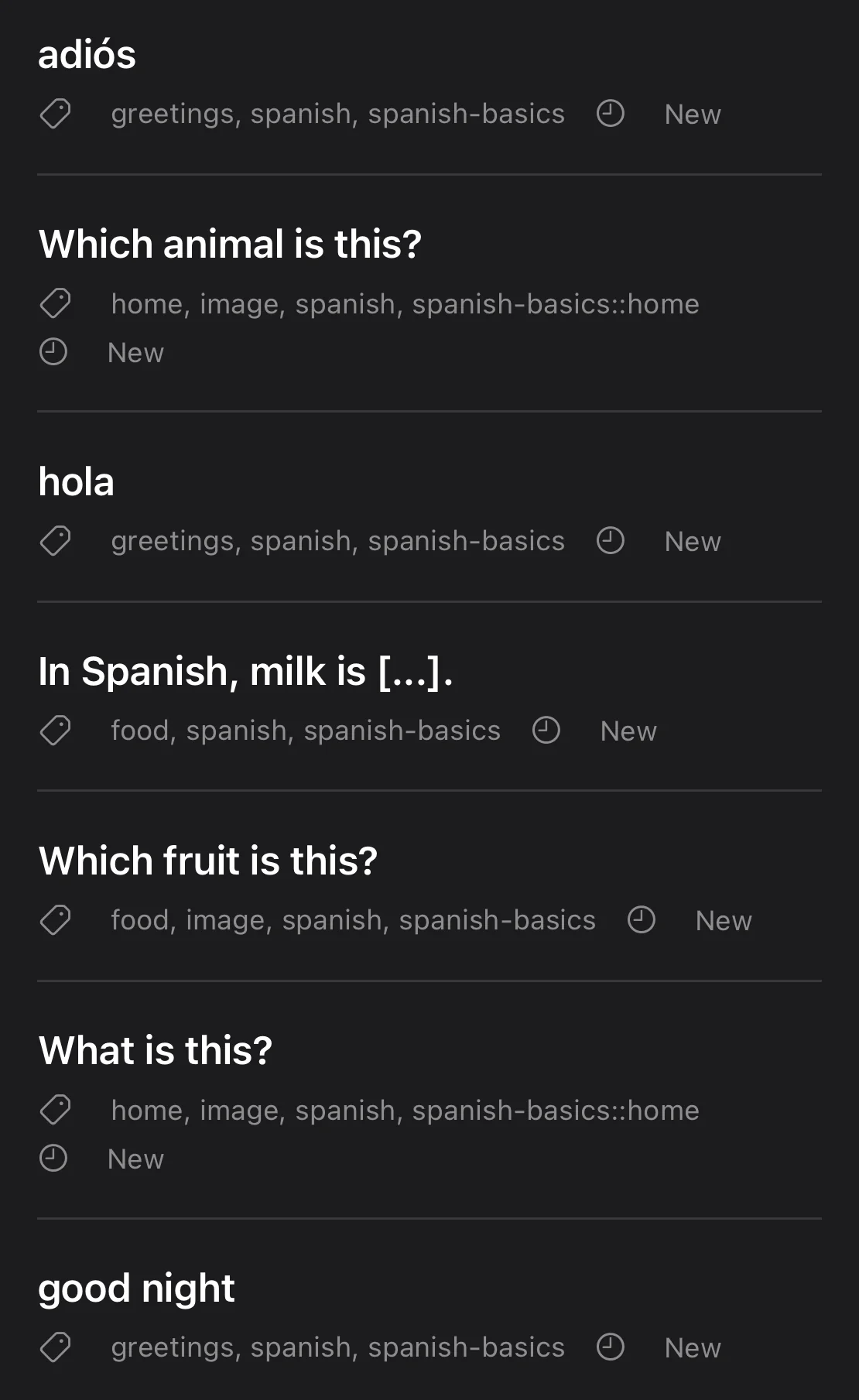
The picture cards show just their question, like "Which fruit is this?". In the November 9 repeat, the AI saved the pictures without a text description, so nothing in the list gives away the answer. The web app shows these rows this way already; the iPhone and Android apps get this change in their next release, so until then their rows may show extra text after the question.
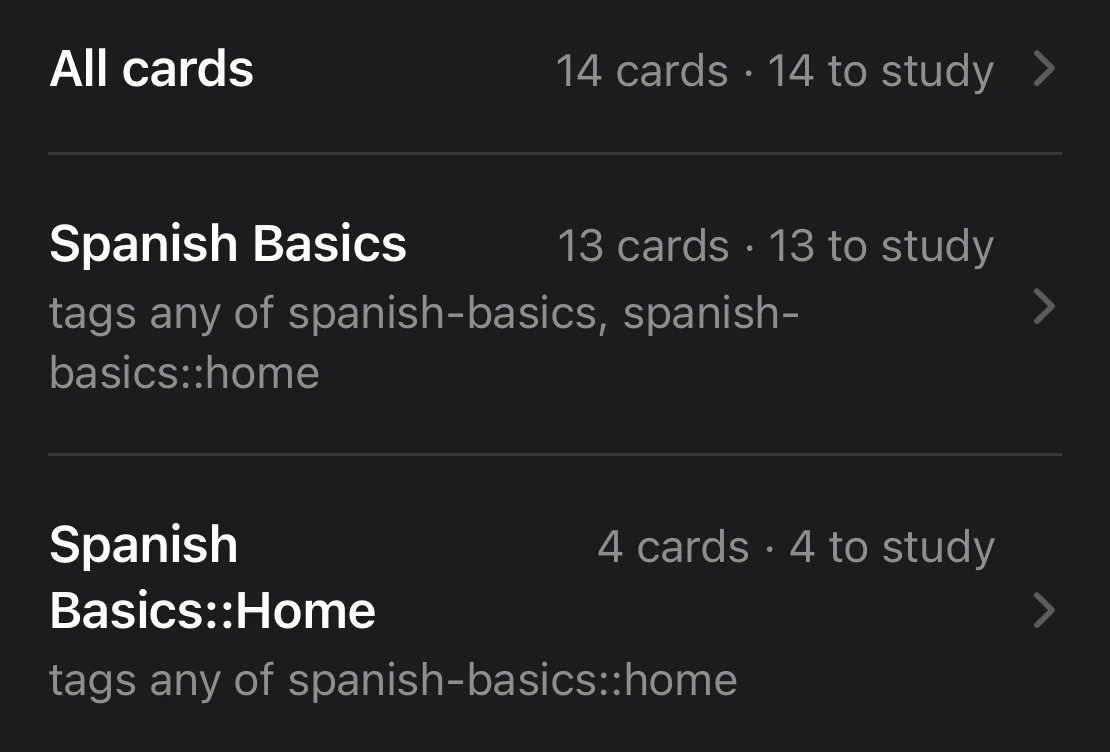
Decks needs a short explanation, because a Nibomo deck isn't a folder. It's a saved filter over tags. The AI gave every imported card a tag for its Anki deck, spanish-basics or spanish-basics::home, and created one deck per Anki deck with the full Anki name. The subdeck became its own deck, "Spanish Basics::Home", with 4 cards. The parent, "Spanish Basics", filters on both tags, so it shows all 13, just like an Anki parent deck includes its children. You get a flat list rather than a folding tree, and the :: stays in the name. The tags vs decks guide covers how the two ideas differ in Anki.
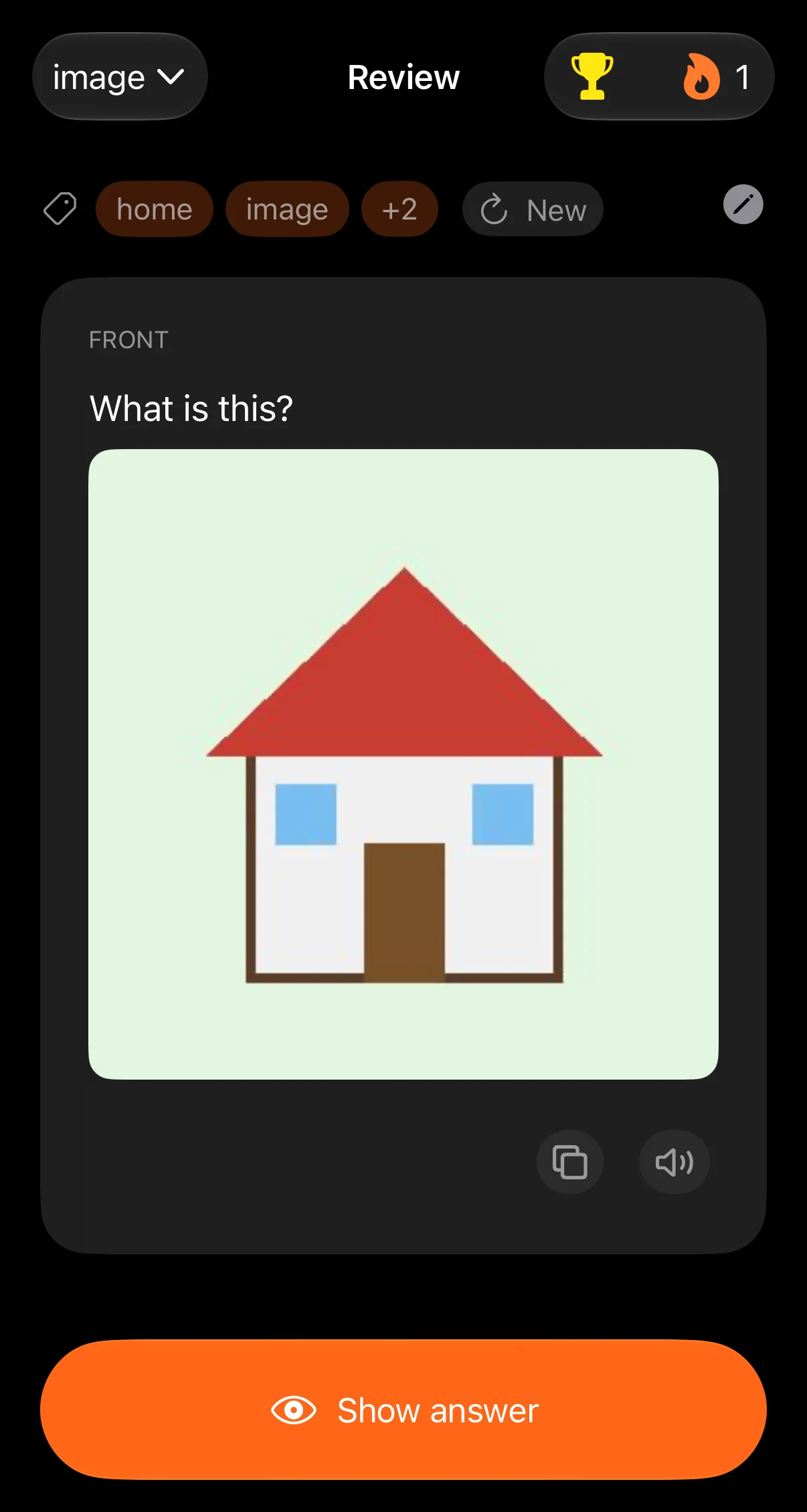
Check the pictures in Review. The filter at the top lets you pick one of the new decks or a tag; in the test, the image tag brought up the three picture cards. Each showed the right picture: a lemon for "Which fruit is this?", a cat for "Which animal is this?", and a house for "What is this?".
A short checklist for your own deck:
- Does the card count match the number of Anki cards, counting both directions of reversed notes and every cloze deletion?
- Do the cloze cards hide the right part of the sentence?
- Does every picture sit on the right card in Review?
- Are your Anki decks in Decks, with the counts you expect for parent decks and subdecks?
If a card is wrong, ask the chat to fix it or edit it yourself. Cards that need rewording often have the problems covered in fixing AI flashcards.
Limits for bigger decks
These come from Nibomo's source code, not from the 13-card test:
| Limit | Value |
|---|---|
| Size of one attached file | 30 MB |
| Files per message | 10 |
| Files unpacked from one archive | Up to 2,000 |
| Pictures saved to cards | JPEG, PNG or WebP, up to 4 MB each; other formats are converted when possible |
Picture-heavy decks are the most likely to hit the 30 MB cap. Splitting a big deck into smaller decks in Anki and importing them one by one keeps each file under the cap and makes each result easier to check. If something goes wrong, you find out while there are only a few hundred cards to fix.
The test didn't cover a large deck, audio, note types other than Basic, reversed and Cloze, or a workspace that already had many cards. Start with your smallest real deck, check it, then move on to the big ones.
When to keep studying in Anki
The .apkg route moves card content: text, pictures, tags and decks. It doesn't move your learning state or Anki's card machinery. Stay in Anki, at least for that collection, if you depend on:
- review history and current intervals you don't want to reset;
- custom note types, templates, CSS or JavaScript;
- add-ons that are part of how you study;
- decks where audio or Image Occlusion carries most of the meaning, which this test didn't cover.
The Anki vs Nibomo comparison goes through the tradeoffs in more detail. If you do switch, pick a day and stop reviewing the same cards in Anki. Two apps scheduling the same material drift apart fast. Keep the .colpkg backup in case you change your mind.
The older option: an Anki TXT export
The older way in is a Notes in Plain Text export from Anki, attached to the chat as a .txt file. It still works, and it's handy when you want to clean up fields in a text editor first or move only some of a deck's fields. A text file can't carry the pictures, though. The TXT export guide walks through it.
For most decks, the .apkg is the simpler start: one file, one message, and in the test the cloze cards, decks and pictures came along with the text.