How to Import Noji (Anki Pro) Flashcards into Nibomo
If your Noji deck is mostly vocabulary pairs or written questions and answers, start with CSV. If the picture is part of the question, try an OFC backup on a small deck first. Nibomo's Import from Noji accepts both files. Cards start fresh in Nibomo, even if your OFC backup includes Noji study progress.
Pick the right Noji export
In Noji (formerly Anki Pro), open a deck you created and choose Settings → Export deck. Export a subdeck by opening it directly; exporting a parent deck includes all its subdecks. Noji's export instructions explain the two formats:
| Format | How to save it | What it contains |
|---|---|---|
| CSV | Save the .csv in your device's file picker. |
Card text, including text from fill-in-the-blank (cloze) cards. Pictures, image occlusion, and custom formatting are left out. |
| OFC | Choose OFC and download the file from Noji's email within 24 hours. | A Noji backup that can include images, covered areas used for image occlusion, and custom formatting. You can choose whether to include your Noji learning progress. |
If you don't see Export deck, check how the deck got into Noji. Noji lets you export decks you created, and its help center excludes imported or duplicated decks. If the deck originally came from Anki and you still have its .apkg file, use Nibomo's separate Import from Anki row with that original file.
Open Import from Noji in Nibomo
- Open the workspace where you want the cards. If your installed version doesn't show the Noji option, use the Nibomo web app.
- Go to Library → Import → Import from Noji. Select Choose files and pick the
.csvor.ofcyou saved. - Select Start import. Nibomo opens a new AI chat with the file and an import request. The chat can save cards to the current workspace as it works.
- Wait for the AI chat to finish the import and for Nibomo to sync the new cards. Then open Library → Cards and look for the cards from your source deck.
Nibomo's AI reads the contents of the file; an OFC backup doesn't guarantee the same layouts or picture masks in Nibomo. Your Noji review history and due dates stay in Noji. Keep the original deck and backup if you still need them.
Try a small deck before moving the rest
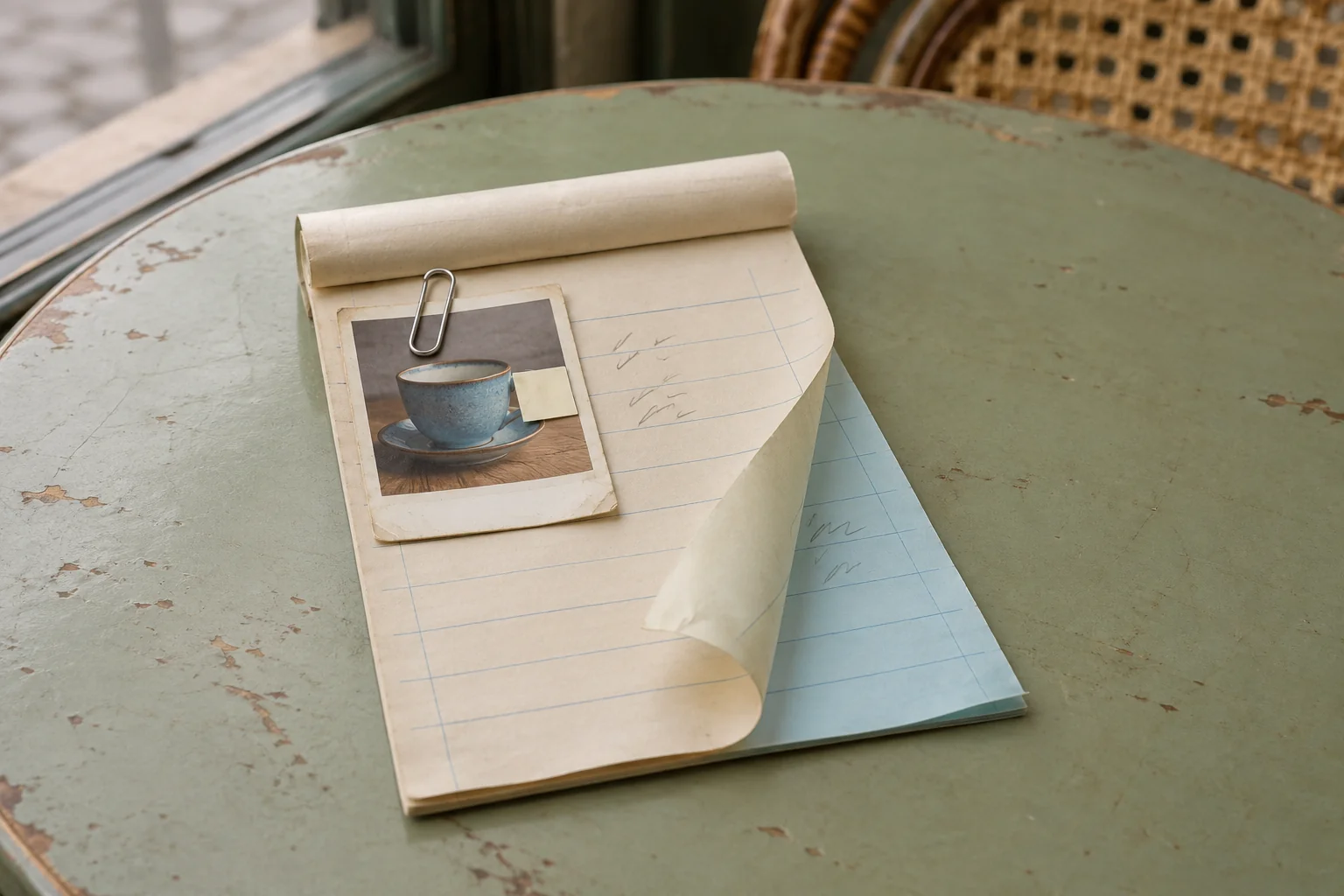
For the French café sample, export the first two cards as CSV. Add the teacup card before exporting OFC. Use a separate empty Nibomo workspace for each import. In each workspace, follow step 4 to check the expected count (two for CSV, three for OFC), then flip the imported cards in Review.
| Card in Noji | What to check in Nibomo |
|---|---|
Front: Un café, s’il vous plaît. Back: A coffee, please. |
Look for the entire phrase on each side, including the accents and comma. |
Cloze: Je voudrais […], s’il vous plaît. Hidden answer: un café. |
The front should still ask you to fill the gap. Flip the card to check that the answer is there. |
Front: a picture of a teacup. Back: une tasse. |
In the OFC trial, open the card in Review and check that the picture appears before you flip. |
If you study with image occlusion, include one of those cards too. Look at the front without flipping it: a picture can make it across even when the label you meant to hide is already visible. If the full OFC file is too large, export a smaller subdeck. The Nibomo import guide lists the file limits and other ways to bring in cards.
This AI-assisted guide uses Noji's export documentation and Nibomo's importer code. The café deck illustrates the checks you can run on your own import.