How to Make Flashcards With Pictures in Nibomo
A photo of a whole jacket could prompt you to name the jacket, the pocket, or the zipper. If you want to practice the Spanish word for the zipper, crop the photo so the pull tab and a few teeth fill the frame.
To make flashcards with pictures in Nibomo, go to Library → Cards, open a new or existing card, add a picture to Front or Back, and save. Use the front when the picture is part of the question. Use the back when it helps you check the answer.
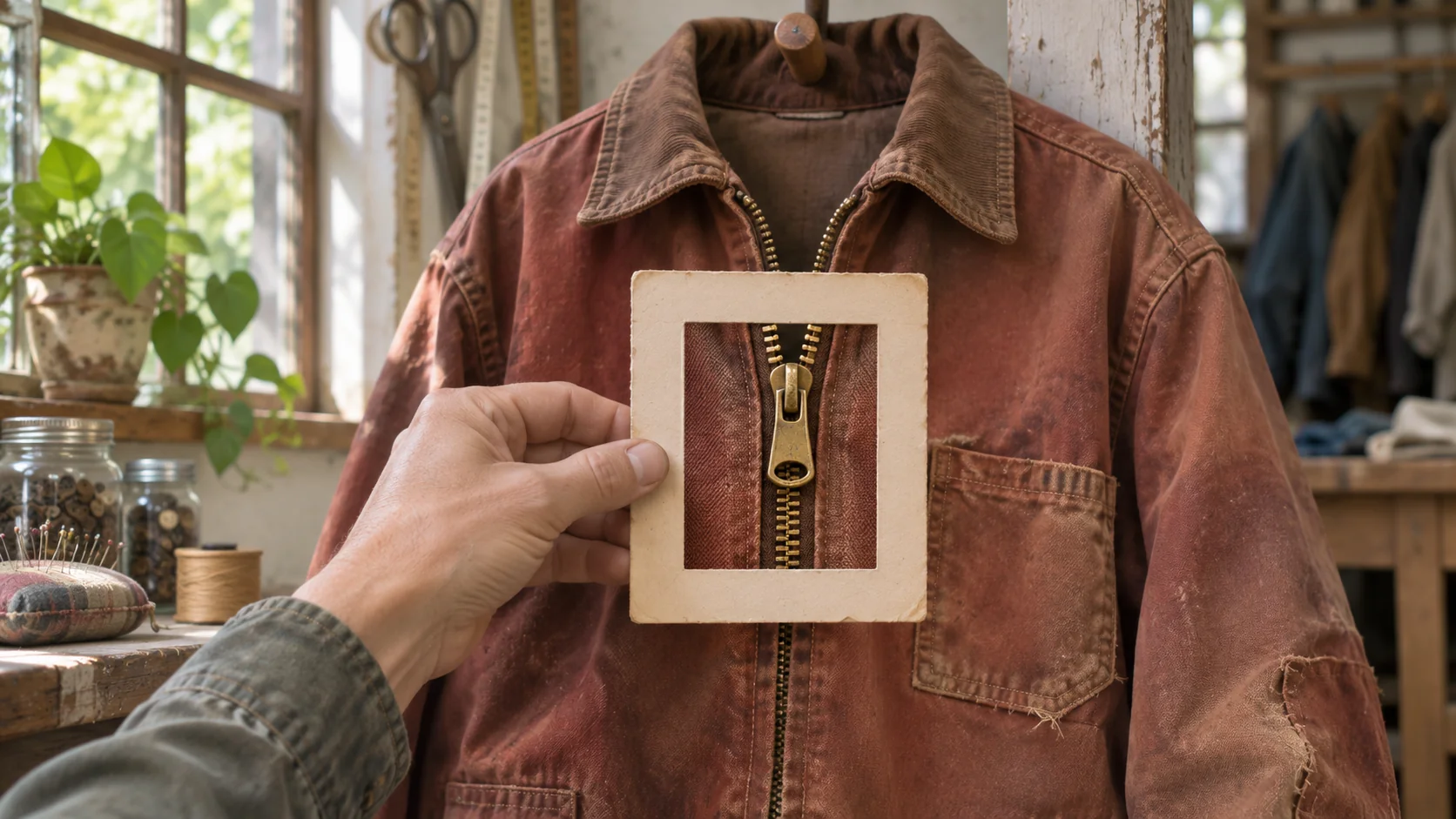
Make a picture card for a zipper
Take a close-up of a jacket zipper. Keep the pull tab and teeth visible and crop out any labels that give away the answer. Save the crop as a JPEG or PNG.
- On the front, add the photo and write “What’s the Spanish word for this fastener? Include the article.”
- On the back, write “la cremallera (zipper).”
When the card comes up in Review, say the noun and article out loud before you select Show answer. Check that you said la cremallera. If your first guess is the word for “jacket,” crop the photo tighter or add a small arrow pointing to the zipper, then try the revised card the next time it comes up.
If you want to practice recognizing the Spanish word, put la cremallera on the front and the English word and photo on the back. Recall the meaning before you reveal the picture. The Spanish flashcard guide has more prompts for practicing a noun with its article.
Add a picture to a new or existing card
- Go to Library → Cards. Open an existing card, or create one by choosing New card on the web or tapping the + button (Add card) on your phone.
- On the web, click the picture icon beside the side you want. It's labeled Insert image into Front or Insert image into Back. On iPhone or Android, open Front or Back, then tap the Add image icon.
- Select the picture and check the preview on that side. Make sure the question and answer are still in their fields.
- On the web, click Save card. On your phone, go back to the card form and tap Save.
Check the picture at the size you actually study at. In Review, a front image should appear with the question, and a back image should appear after you select Show answer. If the zipper teeth are hard to see on your phone, go back to Cards and replace the photo with a closer crop.
Check that the picture syncs
Sign in to the same account and open the same workspace on both devices. Keep them online while the first device uploads the picture and the second device syncs the card and downloads the image. The text can arrive before the picture. On the second device, reopen the card in Cards and check the side where you attached the image. Check it again when the card comes up in Review.
If only the text appears, check the image on the device where you added it. If the upload is pending, give it time to finish online. If the web editor shows Retry next to the image, select it and let both devices sync again.
Before studying offline on your phone, open the card while you're connected and wait for the picture to appear. Turn on airplane mode, make sure Wi-Fi is off, then reopen the card in the installed app. Check that the picture still appears. See the guide to studying offline with flashcards for more on offline access.
The editor and review steps come from Nibomo's web, iPhone, and Android source code. The sync check follows Nibomo's cross-device image checklist.