How to Connect Nibomo Flashcards to Claude with MCP
Claude can save flashcards directly to your Nibomo workspace through its listed MCP connector. Connect Nibomo from the Claude directory, sign in to Nibomo, and choose which actions Claude can run without asking each time.
The manual setup screenshots below were checked in Claude Desktop on September 20, 2026. For REST/API-key onboarding, see the API documentation.

Connect through the Claude directory
Open Nibomo in the Claude directory, connect it, sign in to your Nibomo account, and authorize access. Nibomo is listed as a Community connector.
For Claude Code, use the same Claude subscription account and check /mcp after connecting. API-key and third-party-provider logins do not automatically load your claude.ai connectors.
Alternative: add a custom connector
You'll need a Nibomo account and access to custom connectors in Claude. Nibomo uses a remote MCP server, so there's nothing to install locally. Anthropic documents this connection method in its custom connector guide.
-
Open Settings > Connectors in Claude Desktop, or open Connectors in the browser.
-
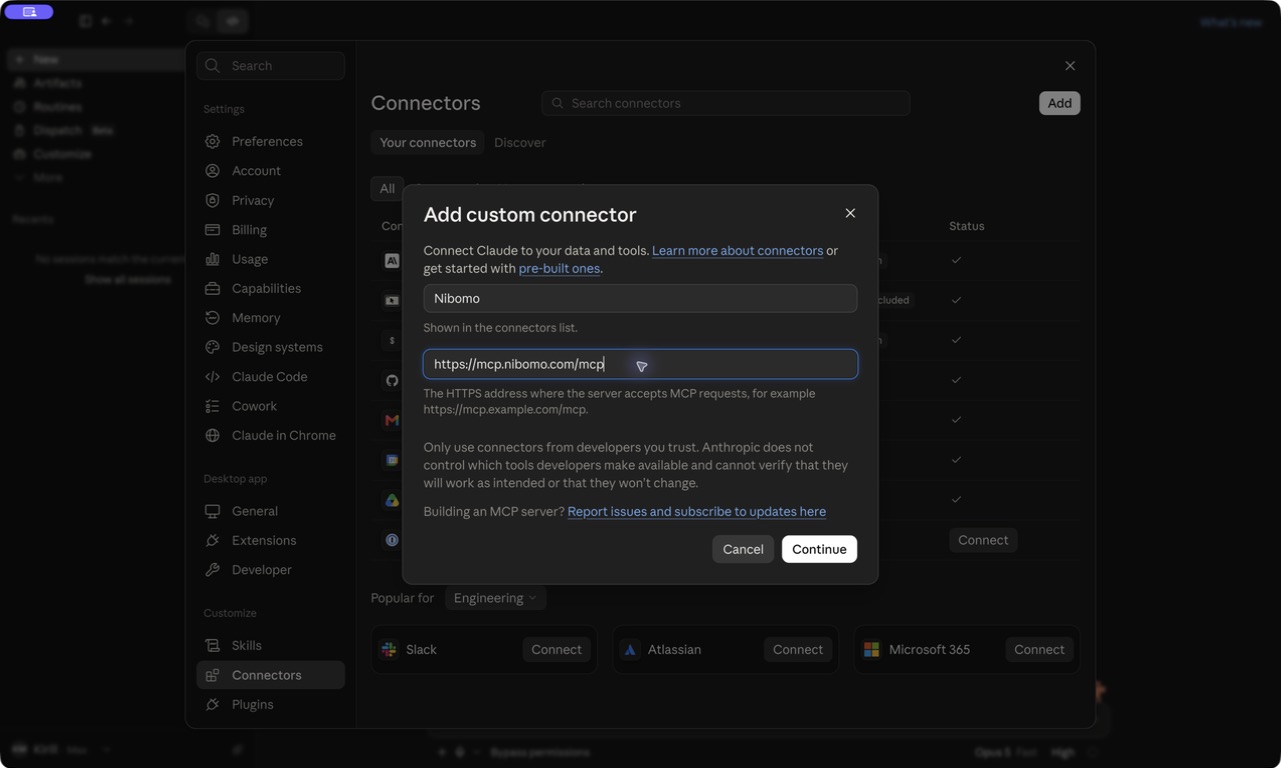
Choose Add custom connector.
-
Enter Nibomo as the name and paste this server URL:
https://mcp.nibomo.com/mcp -
Click Continue.
-
On the authentication screen, keep Sign in now and Register automatically (DCR) selected. Leave custom headers and advanced settings at their defaults.
-
Click Add, then Connect.
Sign in and allow access
Claude opens a browser to finish the connection. If it shows a confirmation first, choose Continue connecting.
The Nibomo authentication page uses auth.flashcards-open-source-app.com. It may recognize an existing Nibomo session; otherwise, sign in to your account. The consent screen says Claude wants to connect to your Nibomo account and describes access to read and write flashcards and review data.
Check that you're connecting the intended account, then click Allow access. When the page shows Connected, choose Open desktop app if you're using Claude Desktop. Back in connector settings, you should see Nibomo with https://mcp.nibomo.com/mcp.
Keep writes on approval
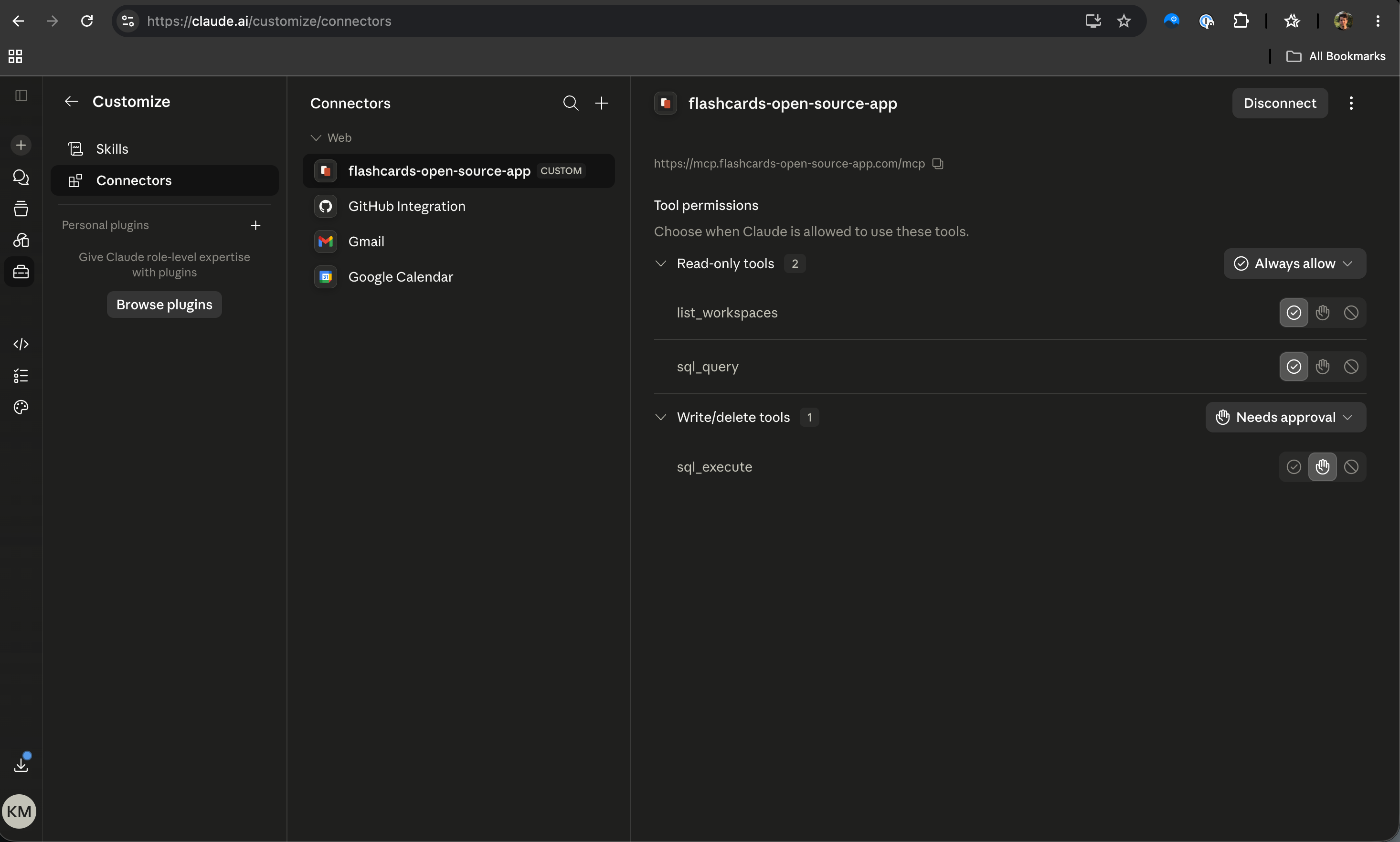
The connector has tools for reading your study material, changing it, and recording reviews. Open Nibomo in Settings > Connectors to review its tool permissions. For the setup shown here, set the six read tools to Always allow and keep the two write tools on Needs approval:
| Permission | Tools |
|---|---|
| Always allow | Get flashcards usage guide; get_usage_limits; List flashcards workspaces; Next flashcard question; Reveal flashcard answer; Nibomo SQL query (read-only) |
| Needs approval | Nibomo SQL execute (write); Submit flashcard review |
This lets Claude find a workspace and read cards while asking before it changes data or submits a review. You can choose stricter permissions if you want to approve reads too.
Try one card and check that it was saved
Open a conversation and make sure Nibomo is enabled in the chat's connector menu. Start with a small request that makes the destination and card content explicit:
Use Nibomo to list my workspaces and ask me which one to use.
Then create one flashcard:
Front: What does HTTP 404 mean?
Back: The requested resource was not found on the server.
Tag: web-basics
Choose the workspace, review Claude's write request, and approve it if the content and destination are correct. Then open Nibomo and check that the saved card has the question on the front and the answer on the back. The walkthrough above verified the connection and saved permissions; it did not create a card. This first test checks that Claude can also save a card to your chosen workspace.
If Claude only writes the card in chat, check that Nibomo is connected in settings, enabled for that conversation, and that Nibomo SQL execute (write) isn't blocked. Ask it explicitly to save the card through Nibomo.
For larger batches, How to Use Claude to Make Flashcards covers drafting useful questions and answers. If you're studying HTTP codes, you can also start with the existing HTTP Status Code Flashcards deck.
If you already use the older connector URL
The older https://mcp.flashcards-open-source-app.com/mcp endpoint still works. Use https://mcp.nibomo.com/mcp for a new connection, and expect to authorize Nibomo again when switching URLs.
To follow the sequence checked for this guide, open the older connector in Settings > Connectors, choose Disconnect, then More options > Remove. Add Nibomo using the steps above and confirm that it shows the new URL and the expected tools.
If you're new to the app, Getting Started covers the workspace and study flow after your first card is saved.